
LG Medical Monitor Calibration: Calibration Studio Medical & DICOM Guide
Learn how LG medical monitor calibration works with Calibration Studio Medical, DICOM Part 14, sensors, QA testing, and common troubleshooting.
Read Article →The Texel Comp radiology workstation blog provides detailed guidance on diagnostic displays, professional workstations, medical imaging graphics, calibration, reading-room planning, and nationwide technical support.
Start with a complete view of the display, workstation, graphics hardware, calibration tools, workflow, and support plan.
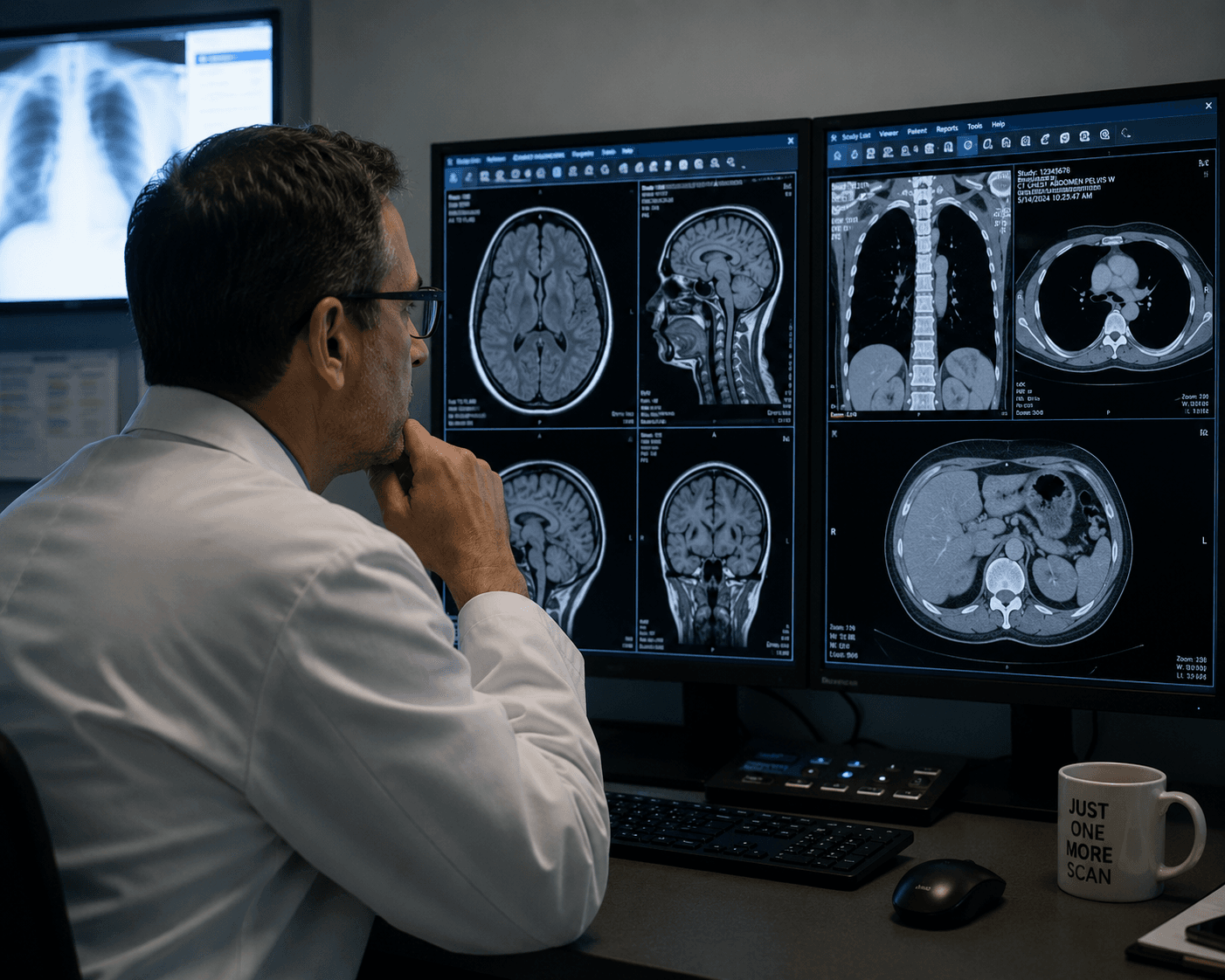
Compare leading medical-display platforms and learn how monitor performance, QA tools, workflow, budget, workstations, graphics hardware, and technical support fit into one dependable reading-room plan.
Read the Featured Guide →A dependable radiology reading station is a coordinated system. The workstation, diagnostic displays, graphics hardware, software, connections, quality-control process, and technical-support plan must be evaluated together.
Hardware specifications alone do not determine whether a reading station will work reliably. Display resolution, luminance requirements, available GPU outputs, qualified drivers, PACS behavior, dictation devices, KVMs, cables, ambient conditions, and ergonomics all affect the final setup. The Texel Comp radiology workstation blog explains these relationships so imaging centers and radiologists can evaluate the complete environment before ordering equipment or changing an existing configuration.
Medical-display planning requires more than selecting a monitor by megapixel rating. The intended modality, manufacturer instructions, sensor workflow, calibration software, reporting process, and facility quality-control policy must also be considered. Our guides reference established resources such as the DICOM PS3.14 Grayscale Standard Display Function while keeping clinical validation and compliance decisions with the facility’s qualified personnel.
Reading-room problems often cross several technical layers. A blank display may involve a cable, graphics output, driver, Windows configuration, monitor profile, or failed component. Slow performance may originate with storage, memory, background processes, remote access, or the PACS client. These articles help readers document their equipment, identify likely failure points, ask better questions, and decide whether an issue needs routine maintenance, remote technical support, a vendor escalation, or replacement hardware.
Detailed articles covering workstation configuration, after-hours support, diagnostic displays, calibration, and quality-control planning.
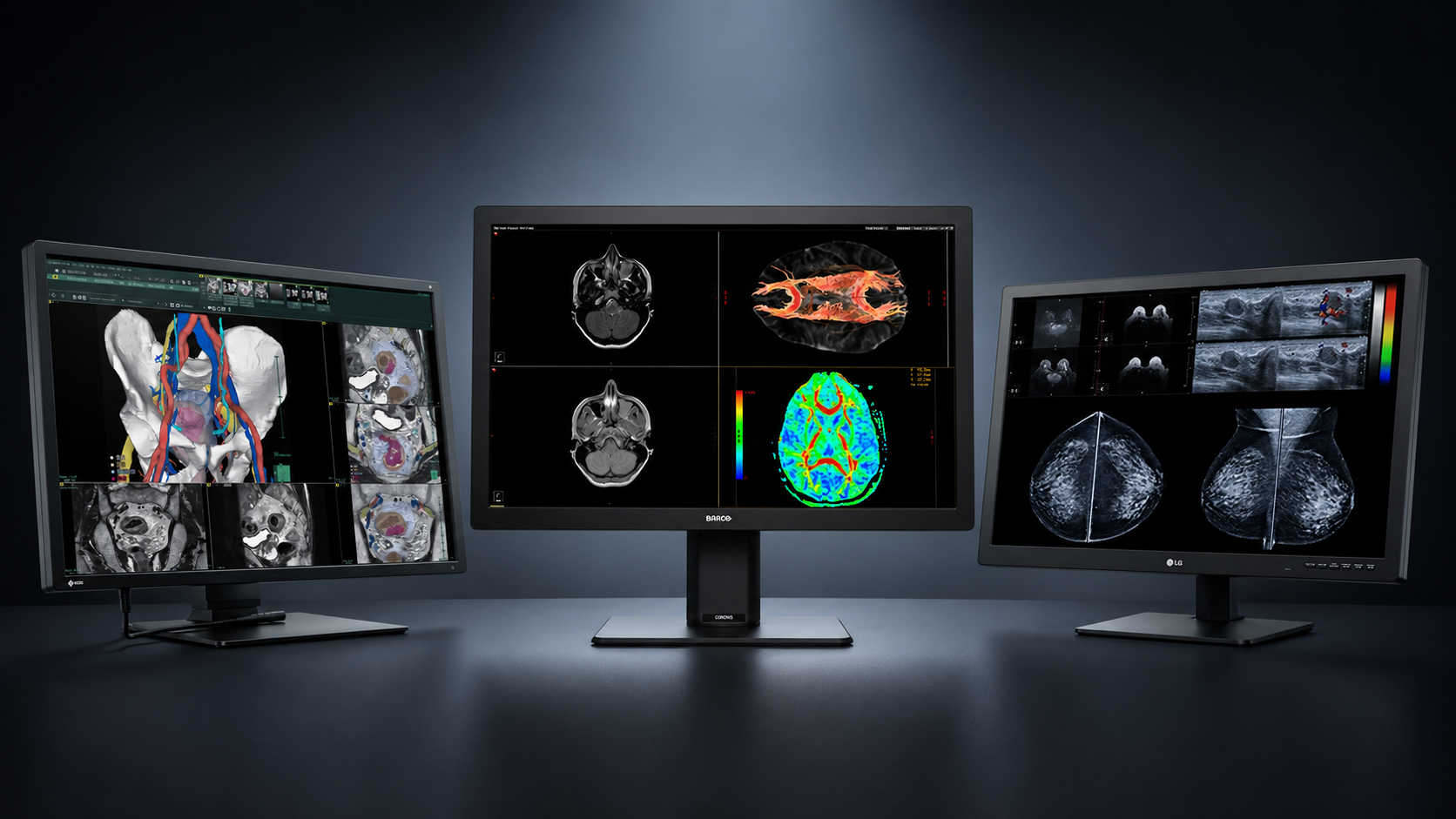
Learn how LG medical monitor calibration works with Calibration Studio Medical, DICOM Part 14, sensors, QA testing, and common troubleshooting.
Read Article →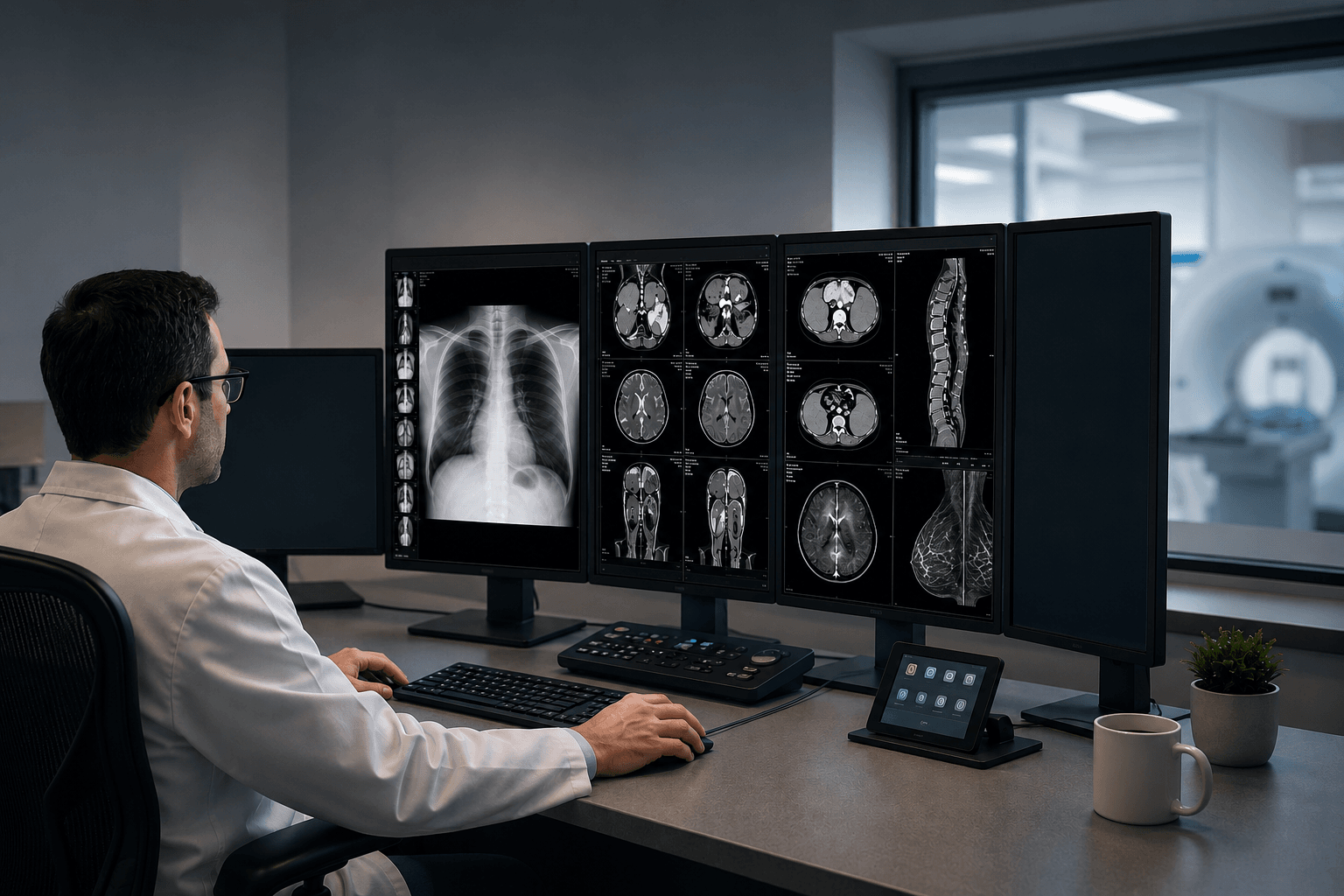
A practical guide to monitor roles, GPU compatibility, native resolution, display configuration, DICOM calibration, and common setup mistakes.
Read Article →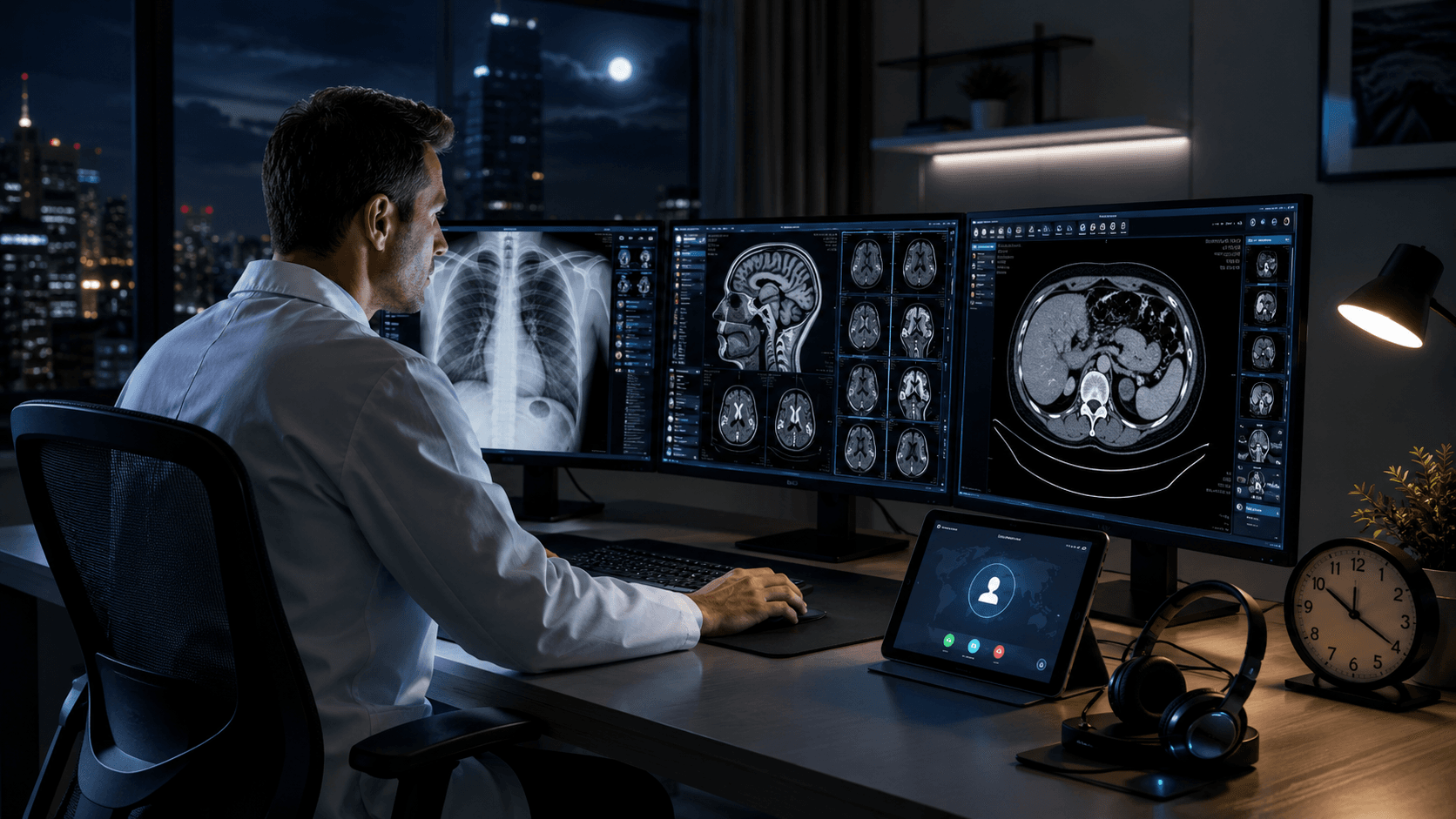
Learn why after-hours coverage matters and how remote support can address workstations, displays, PACS, DICOM, GPUs, drivers, and peripherals.
Read Article →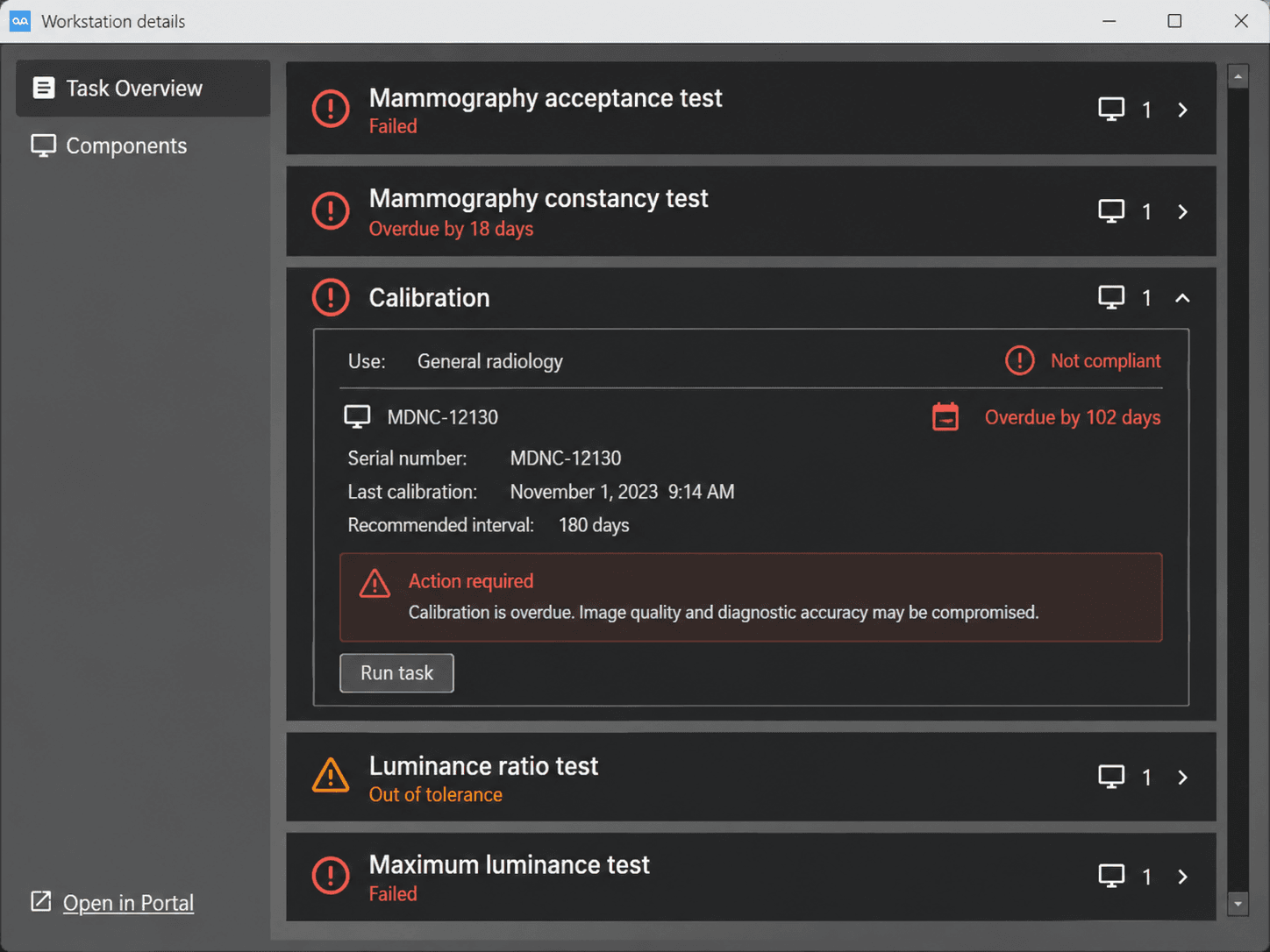
Understand how calibration drift and failed quality-control processes can affect display performance, documentation, workflow, and operational risk.
Read Article →Go directly to Texel Comp’s dedicated display, workstation, graphics, and technical-support resources.
Medical Display MonitorsBarco, EIZO, and LG diagnostic, mammography, and clinical-review displays.Explore Displays →
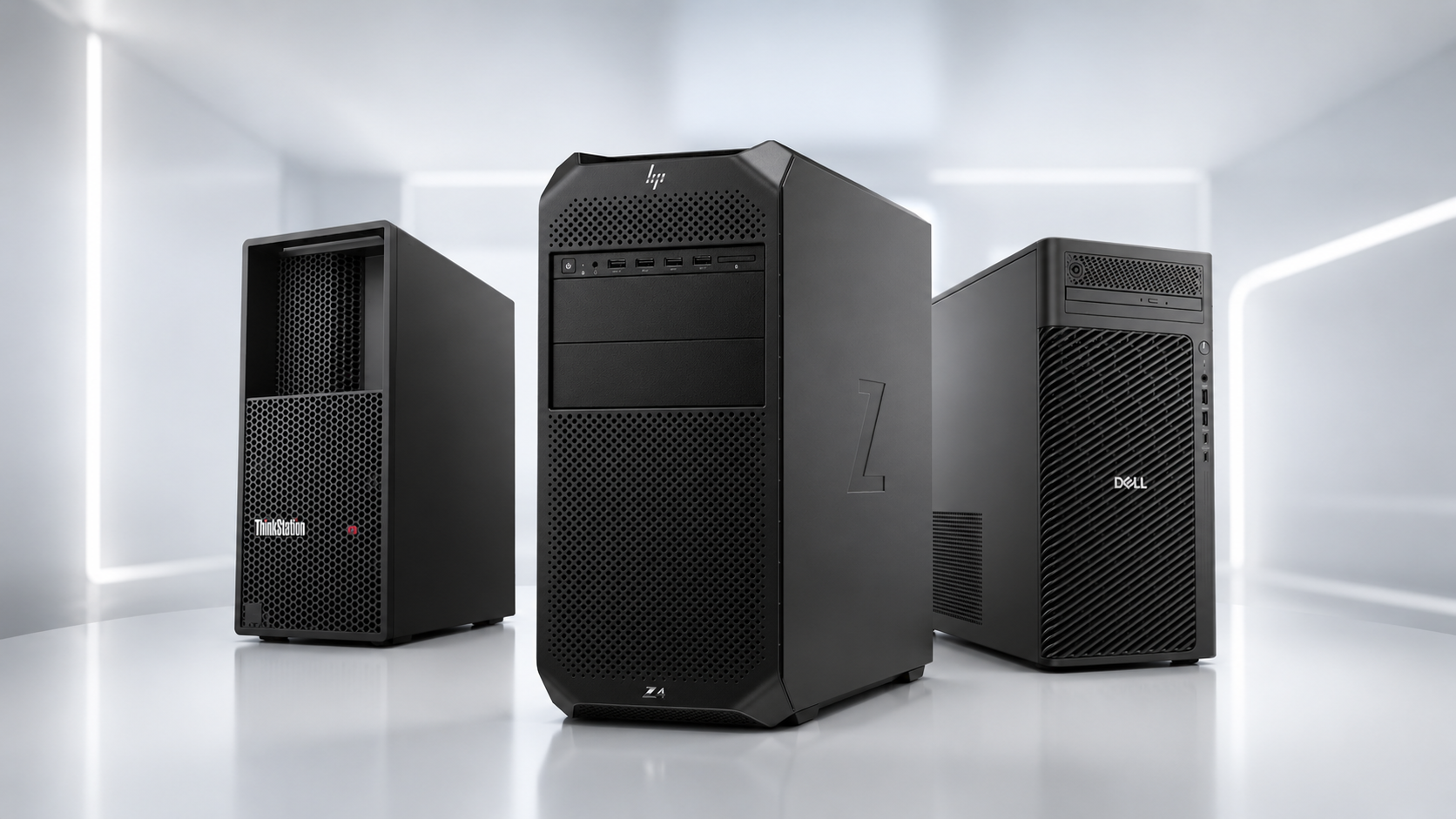 Radiology WorkstationsDell Precision, HP Z-Series, and Lenovo ThinkStation platforms for PACS workflows.Explore Workstations →
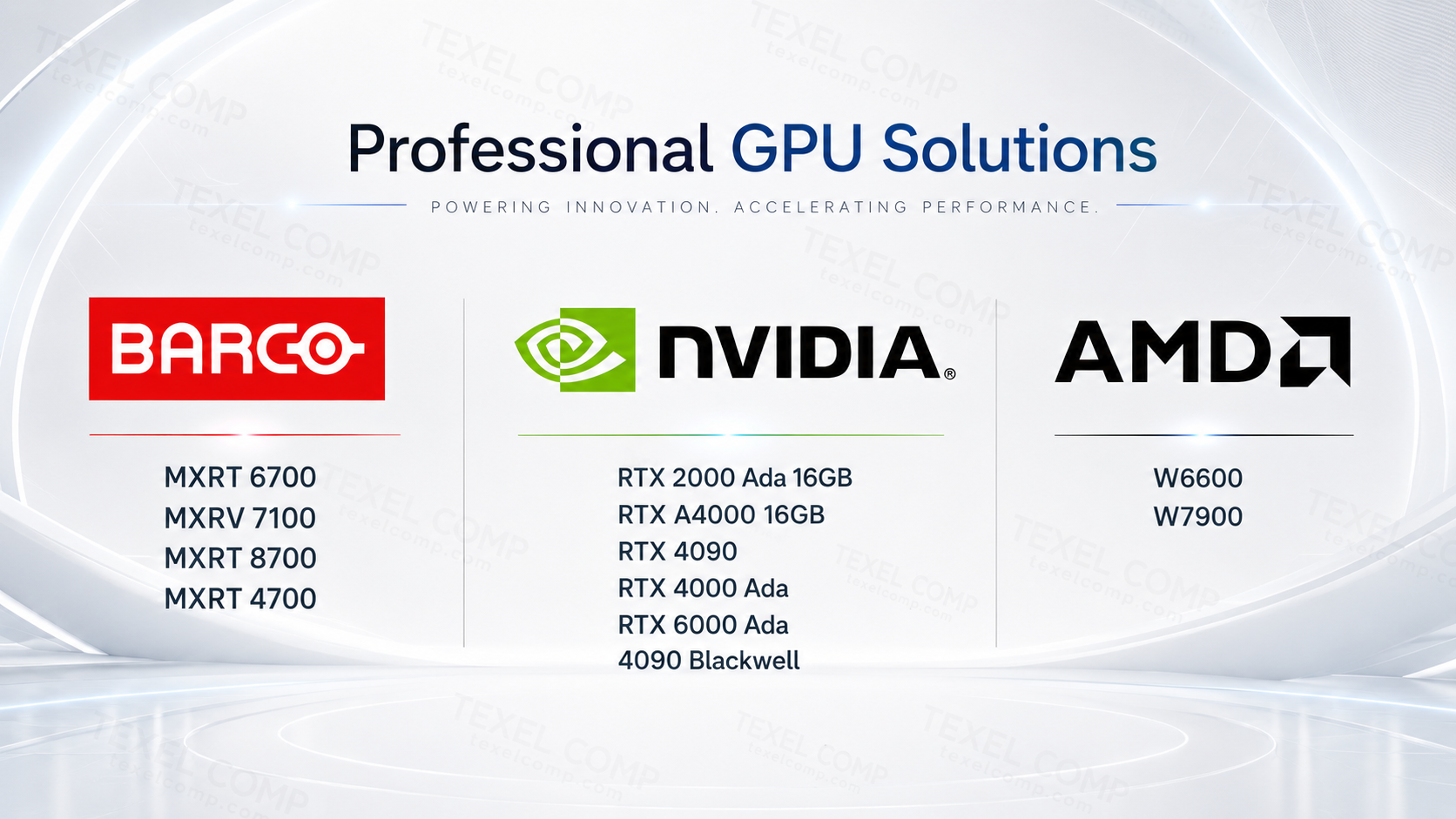 Medical Imaging GraphicsBarco MXRT, NVIDIA RTX, and AMD Radeon Pro solutions for multi-display output.Explore Graphics →
 Radiology Technical SupportNationwide remote help for PACS, displays, workstations, GPUs, and peripherals.Explore Support →