
Define Every Screen
Assign diagnostic, worklist, reporting, and communication roles before choosing hardware.
A reliable multi-monitor workstation setup gives every display and application a clear role—from diagnostic image review and PACS worklists to reporting, dictation, and communication. This guide explains how to plan the complete environment as one coordinated system.
Assign diagnostic, worklist, reporting, and communication roles before choosing hardware.
Verify resolution, connectors, driver support, and simultaneous display capacity as one plan.
Confirm layout, native resolution, calibration, profiles, PACS behavior, and the QC process.
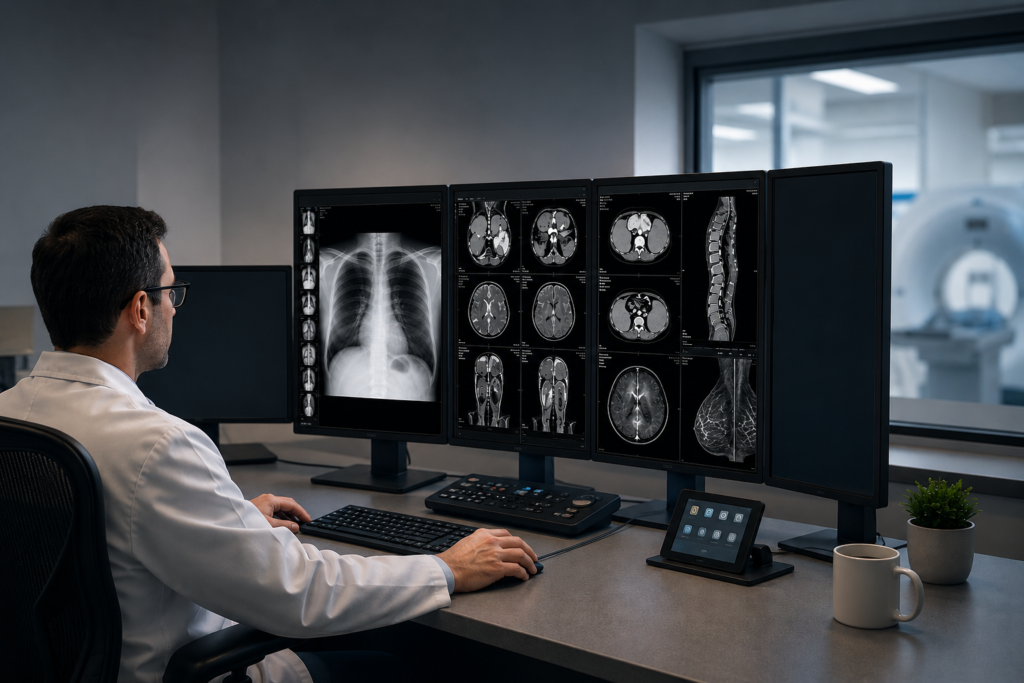
Start with the reading workflow rather than the number of screens. A radiologist may need simultaneous access to diagnostic images, prior studies, a PACS or RIS worklist, speech recognition, clinical records, messaging, and video communication. Each tool should have a predictable place so the reader is not repeatedly moving windows or searching for an application.
Document the modality, PACS platform, reading volume, physical desk space, ambient lighting, remote-access method, and whether the station is used for primary diagnosis, clinical review, mammography, or a combination of workflows. This prevents a visually impressive setup from becoming an operationally awkward one.
Matched diagnostic displays with a separate screen for worklists, reporting, or communication.
A modality-appropriate, cleared mammography display arrangement plus a dedicated workflow screen.
A high-resolution diagnostic canvas selected around the studies, PACS tools, and reading pattern.
A compact, dependable layout that also accounts for dictation, secure connectivity, and remote support.
A diagnostic display and a worklist monitor do not have the same job. Displays intended for diagnostic interpretation should be selected according to the modality, clinical use, required resolution and luminance, QA program, and applicable facility or regulatory requirements. A commercial display may be appropriate for worklists, reporting, email, or communication when it is not being used for primary interpretation.
Medical-grade displays from Barco, EIZO, and LG Medical are designed around clinical imaging requirements such as luminance stability, DICOM grayscale calibration, uniformity control, and quality-assurance tools. The best brand or model depends on the actual workload—not simply the highest specification on a product sheet.
Practical rule: select the diagnostic display first, then build the workstation, GPU, cabling, mounting, and workflow screens around its requirements.
Texel Comp supplies and supports diagnostic displays for different reading environments. You can review the current medical display monitor options or request a recommendation based on your modality and workflow.
Count more than the monitors. Record the native resolution, connector type, orientation, refresh requirement, and intended use of every screen. Then verify that the graphics solution can operate the complete arrangement simultaneously with qualified drivers and without depending on unreliable splitters or a chain of unnecessary adapters.
Professional graphics options from Barco, NVIDIA, and AMD can support high-resolution multi-display environments, but the correct choice depends on the display model, PACS application, operating system, and number of outputs. GPU memory alone does not determine compatibility; output topology, driver support, firmware, and workstation power and cooling matter as well.
| Component | What to verify | Why it matters |
|---|---|---|
| GPU / display controller | Supported display count, resolution, bit depth, qualified driver, and PACS compatibility. | Prevents missing outputs, unstable layouts, and unexpected driver limitations. |
| Physical outputs | DisplayPort or other required connectors, active-adapter requirements, and direct cable paths. | Reduces signal problems and avoids buying the wrong cables after deployment. |
| Workstation platform | PCIe slots, power supply, CPU, memory, storage, network connection, and cooling. | Keeps PACS, dictation, remote access, and image handling responsive together. |
| Operating system | Windows edition, security policy, driver support, and organizational update controls. | Supports predictable deployment and reduces configuration drift. |
| Power protection | Appropriately sized UPS, surge protection, cable management, and controlled shutdown. | Protects the station and gives the user time to exit applications safely. |
Purpose-configured Dell Precision, HP Z-Series, and Lenovo ThinkStation systems can provide a stable foundation when their components are selected for the actual reading environment. See Texel Comp’s radiology workstation computers and medical imaging graphics solutions for compatible options.
After the hardware is connected, arrange the displays in Windows so the digital layout matches the physical desk. Identify and label every monitor, confirm native resolution and orientation, and test the pointer path across all screens. Scaling should be evaluated with the PACS application and organization’s workflow; a single blanket scaling rule does not fit every display combination.
Install only the qualified graphics and display software needed for the environment. Each diagnostic display should use the correct calibration or color-management configuration for that unit. Avoid copying one monitor profile across every screen unless the display manufacturer’s workflow specifically calls for it.
Do not enable PACS graphics acceleration or change specialized display settings blindly. Confirm that the option is supported by the PACS vendor, graphics driver, and clinical environment before deployment.
Before the station enters clinical use, validate the complete workflow—not just whether every screen turns on. Confirm diagnostic display calibration using the manufacturer’s approved process, check that profiles and QA services load correctly after restart, verify PACS behavior, and save a baseline record of the final configuration.
Ongoing checks should follow the display manufacturer, PACS vendor, facility policy, modality requirements, and the organization’s quality-assurance program. Built-in sensors and centralized software can simplify routine monitoring, but they do not replace the facility’s required acceptance testing, documentation, or qualified oversight.
Clinical and compliance note: display selection, acceptance testing, calibration, and QC requirements vary by modality, manufacturer, facility, and applicable rules. Follow your organization’s approved program and the guidance of its qualified clinical, physics, compliance, and vendor teams.
Many reading-room problems begin with a small compatibility assumption that was never verified. These are the issues worth catching before installation day.
The GPU may have enough ports but still lack the required connector type, resolution combination, or qualified driver path.
Extra conversion points increase troubleshooting complexity and may interfere with resolution, bit depth, or display identification.
A workflow monitor and a diagnostic display have different intended uses, calibration needs, and lifecycle expectations.
A layout that works once is not complete until profiles, QA services, and applications return correctly after reboot.
High-resolution displays and professional GPUs need stable power, airflow, sensible mounting, and reader-friendly positioning.
Without port, cable, driver, profile, and software documentation, future troubleshooting takes longer than necessary.
A multi-monitor workstation setup spans several systems at once: displays, graphics hardware, Windows, PACS, DICOM tools, calibration software, peripherals, remote connectivity, and the physical reading environment. Generic IT support may resolve a Windows symptom without identifying the display or clinical-workflow dependency behind it.
Texel Comp provides nationwide remote assistance for new and existing reading stations. We can help plan compatible equipment, configure display layouts, troubleshoot resolution and driver problems, support calibration software, coordinate with customer-authorized PACS or IT teams, and document a stable final configuration.
Remote sessions are performed with customer authorization and should follow the organization’s privacy and security policies. Do not send PHI, passwords, remote-access codes, or screenshots containing patient information through a public contact form.
Short answers to the compatibility and workflow questions that commonly arise before deployment.
There is no universal number. The correct layout depends on modality, PACS workflow, whether the station is used for primary interpretation or review, and the need for separate worklist, reporting, or communication screens. Define the workflow first, then select the display count.
Often it can, but compatibility must be verified using the exact monitor resolutions, connectors, bit-depth requirements, operating system, driver, and PACS application. Port count alone is not enough to confirm the configuration.
A commercial display may be suitable for non-diagnostic tasks such as worklists, reporting, email, or communication. It should not be treated as a diagnostic display unless it is specifically approved and managed for that intended use under the organization’s policies.
Not necessarily. Scaling should be evaluated using the actual monitor resolutions, physical sizes, Windows arrangement, PACS behavior, and user workflow. Validate the complete layout rather than applying one setting automatically to every screen.
Yes. Texel Comp provides remote support for existing reading-room equipment as well as systems and displays supplied by Texel Comp, subject to compatibility, access authorization, vendor limitations, and the scope of the issue.
Explore the displays, workstations, graphics options, and technical support that make up a dependable reading station.
Texel Comp supports radiologists, imaging centers, mammography facilities, and teleradiology teams nationwide with practical equipment guidance and remote technical assistance.