
Reading Continues After 5
Overnight, weekend, and on-call workflows need a defined technical escalation path.
After-hours teleradiology support helps protect reading continuity when a workstation, diagnostic display, PACS connection, driver, or peripheral fails outside normal business hours. This guide explains what can often be resolved remotely and how to prepare before a night-shift disruption occurs.
Overnight, weekend, and on-call workflows need a defined technical escalation path.
Many workstation, display, driver, and client-side connectivity issues can be reviewed remotely.
Approved access, system records, contacts, and tested recovery steps matter before an incident.
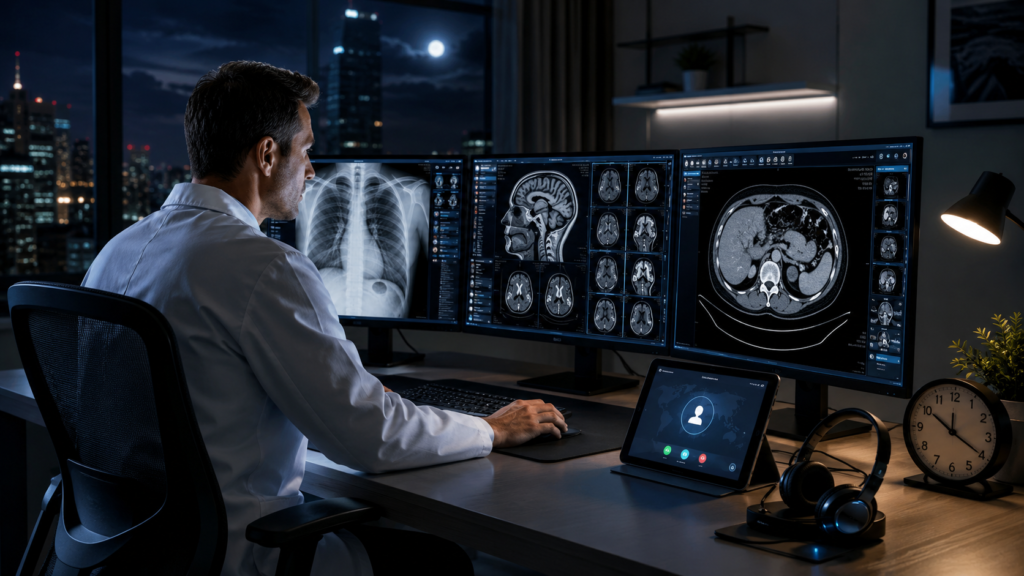
Teleradiology shifts often run when a practice’s local office, internal IT department, or equipment vendor is closed. The radiologist may be working alone, from another time zone, or from a home reading station without on-site technical assistance. A problem that could be reviewed quickly during the day may become a long interruption if no one owns the after-hours escalation path.
The goal is not to promise that every failure can be fixed remotely. The goal is to identify the affected layer quickly, restore what is within remote control, and route vendor, network, hardware, or facility issues to the correct team without losing time to repeated handoffs.
Radiologists working overnight or on call without local technical staff nearby.
Facilities that need technical backup after their normal IT coverage window ends.
Teams with readers, stations, and IT resources spread across multiple locations or time zones.
Internal teams that need a radiology-focused escalation resource for specialized workstation issues.
A teleradiology station is a chain of connected systems. When reading stops, the visible symptom may not identify the actual cause. These are seven common categories worth planning for.
Windows may freeze, fail to boot normally, lose a required service, or become too slow for an active reading workflow.
The local client may not open, authenticate, load studies, or maintain its connection to the required environment.
A diagnostic display may be undetected, assigned the wrong resolution, reversed in the layout, or missing its expected profile.
A driver update, incorrect package, output change, or display-controller problem can create blank screens, artifacts, or lag.
AE title, port, firewall, VPN, network, or destination settings may prevent expected study movement or communication.
QAWeb, RadiCS, LG software, or another display-management tool may fail to start, communicate, or report as expected.
A microphone, foot control, KVM, USB device, headset, or switching path can stop an otherwise functional reading station.
If a diagnostic display’s calibration or QA status is uncertain, follow your facility’s approved policy. Technical troubleshooting can restore software communication, but clinical validation and authorization to return the display to diagnostic use belong to the facility’s qualified QA process.
Remote support is most effective when the affected workstation still has power, a usable internet path, and an approved way for the technician to connect. It can remove travel time and allow a specialist to inspect the environment while the issue is happening, but it cannot replace failed hardware or bypass a customer’s security controls.
Windows and workstation problems, display order and resolution, qualified drivers, PACS client settings, DICOM endpoints within customer control, calibration software, KVMs, and peripherals.
Facility-wide PACS outages, enterprise network or identity problems, ISP failures, failed physical hardware, vendor-locked systems, security approvals, and clinical QA sign-off.
| Situation | Recommended path | Useful information |
|---|---|---|
| Reading is stopped or seriously disrupted | Use the emergency support path and identify the active shift impact immediately. | Affected station, visible error, what changed, available alternate station, and approved callback contact. |
| Reading continues with degraded function | Request prioritized technical support and explain the current workaround. | Affected display or application, symptoms, timing, and whether the issue follows a restart. |
| Planned setup, maintenance, or recurring warning | Schedule routine radiology technical support. | Hardware models, driver and software versions, desired outcome, and maintenance window. |
The fastest path is a structured one. A support process should protect access, identify the affected layer, restore what is safely within scope, and document the result.
State whether reading is stopped, degraded, or continuing on an alternate station.
Use the organization’s approved remote-access process and identify the person authorizing the session.
Separate workstation, display, GPU, PACS client, network, DICOM, calibration, and peripheral symptoms.
Apply the appropriate fix when possible or provide a direct escalation to the PACS, network, vendor, or hardware team.
Confirm the workflow with the user, note any limitations, and record the final configuration or next action.
Privacy reminder: do not place PHI, passwords, remote-access codes, or screenshots containing patient information in a public website form. Share only the minimum technical information through your organization’s approved method.
The best time to establish after-hours support is while the workstation is healthy. Documenting the environment and testing the access path in advance can eliminate basic discovery work during an active interruption.
Proactive review should also include storage health, Windows event logs, graphics-driver stability, display detection, calibration-software communication, PACS client behavior, VPN reliability, dictation tools, and any KVM or USB switching path used by the reader.
Not every after-hours request has the same urgency. Using the correct path helps the support team understand the operational impact before connecting.
Best for workstation setup, display configuration, recurring warnings, maintenance, documentation, upgrades, and work that can be scheduled.
Request technical supportBest when a current failure has stopped or seriously disrupted a radiologist’s active reading shift.
Go to emergency supportImaging centers and multi-station practices may also benefit from a custom support arrangement with defined coverage hours, contacts, locations, supported equipment, authorization rules, and escalation boundaries. Establishing those details before an incident makes after-hours response more predictable.
Texel Comp provides remote radiology technical support for existing and Texel-supplied workstations, diagnostic displays, graphics solutions, and reading-room peripherals. Coverage may include workstation performance, display detection and layout, graphics drivers, PACS and DICOM connectivity within the authorized environment, calibration software, KVMs, dictation devices, and related reading-station problems.
We also supply medical displays from Barco, EIZO, and LG Medical; professional workstation platforms from Dell, HP, and Lenovo; and graphics solutions from Barco, NVIDIA, and AMD. When hardware replacement is the correct next step, the recommendation can be based on the complete reading workflow rather than a single failed component.
Support availability, response time, and scope depend on the selected service path, technician availability, customer authorization, system accessibility, vendor restrictions, and the nature of the failure. If another team owns the issue, we explain the boundary and the evidence needed for escalation.
Clear answers about remote access, support scope, existing equipment, and the difference between routine and emergency help.
Coverage may include workstations, diagnostic displays, multi-monitor layouts, graphics drivers, PACS and DICOM connectivity within the authorized environment, calibration software, KVMs, dictation devices, and related reading-station peripherals. The exact scope depends on the service arrangement and issue.
No. Remote support can resolve many software, configuration, driver, display, and client-side connectivity problems. Failed physical hardware, ISP outages, enterprise network or identity problems, vendor-side PACS outages, and clinical QA validation may require another team or an on-site action.
Routine support is appropriate for planned setup, maintenance, upgrades, recurring warnings, and non-urgent troubleshooting. Emergency support is intended for an active technical failure that has stopped or seriously disrupted a current reading shift.
Yes. Texel Comp supports existing equipment as well as systems and displays supplied by Texel Comp, subject to compatibility, access authorization, manufacturer restrictions, parts availability, and the technical scope of the issue.
Prepare the affected workstation and monitor models, a concise description of the error, what changed before it began, whether another station is available, the approved remote-access method, and the authorized callback contact. Do not submit PHI, credentials, or remote-access codes through a public form.
Use the correct support path and keep the workstation, display, graphics, and reading-room environment aligned.
Texel Comp provides radiology-focused remote technical assistance for individual readers, imaging centers, and distributed teleradiology teams nationwide.